Changing a URL that is already in a live store listing
Moving a privacy policy or deletion page after the app is published, in the order that never leaves a dead link, and why the old address should keep answering.
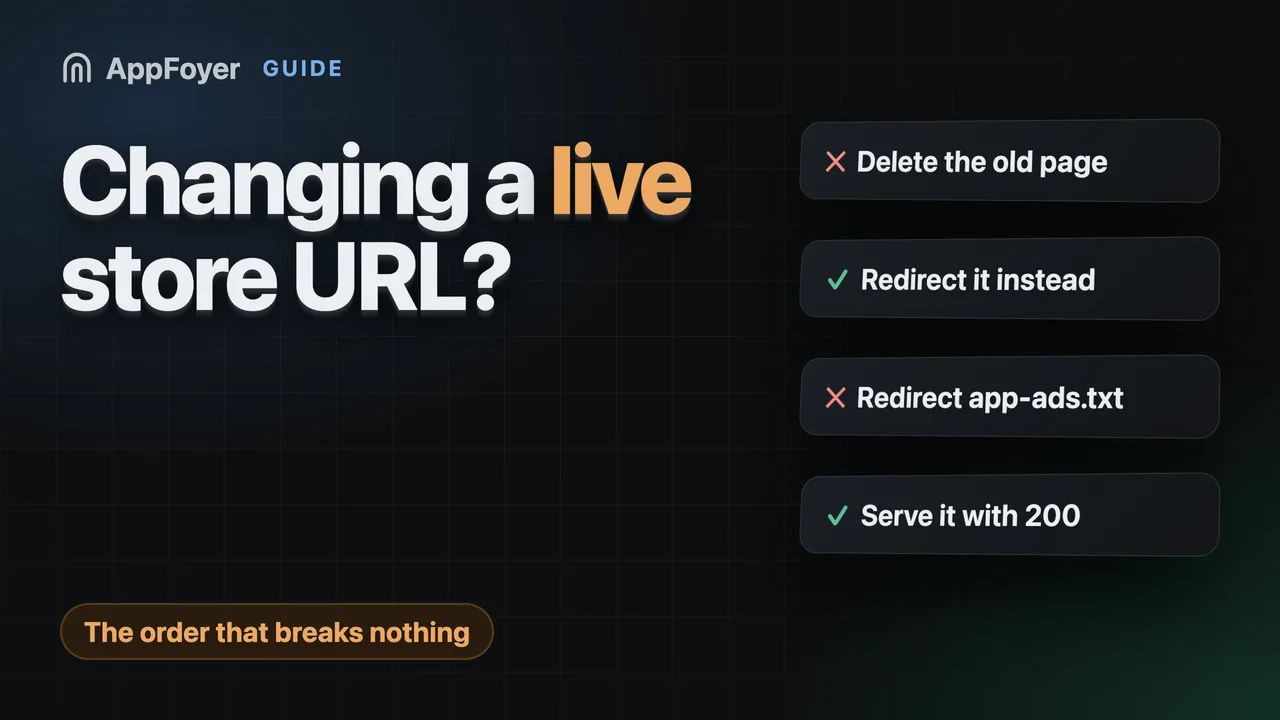
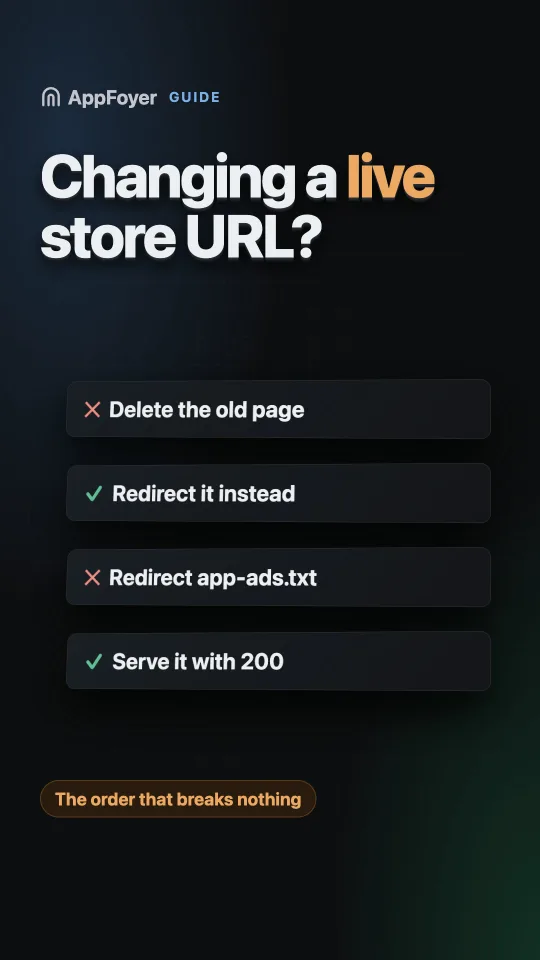
You can edit the URL fields in Play Console and App Store Connect whenever you like. The risk is not the edit — it is the gap where the old URL is already dead while the listing still points at it. Publish the new address first, update the listing, and keep the old one redirecting.
Do this in a few minutes instead
AppFoyer hosts the pages this guide is about — privacy policy, terms, support, account deletion and app-ads.txt — on their own subdomain, with no domain or server of your own. One app is free, and nothing a store requires is ever behind a paywall.
Checked 19 September 2026. Store policies change, sometimes without notice. Everything below links to the official documentation, and that page — not this one — is the authority. If the two disagree, the store is right.
Sooner or later you move: a free host is shutting down, a domain lapsed, a company was renamed, or you built the real site you always meant to. The fields are editable, so the change itself is trivial. What catches people is everything else that quietly points at the old address.
The order that does not break anything
- Publish the new URL and check it signed out. It has to be live before anything points at it.
- Make the old address redirect to the new one. Not delete — redirect. This is the step people skip, and it is the one that saves you.
- Update the console fields. Play Console → App content for the privacy policy and data deletion URLs; App Store Connect for the privacy policy and Support URL. Google Play asks that the policy “is available on an active URL” — so the field must never point at something dead, even briefly.
- Update the links inside your app. Play’s User Data policy requires the privacy policy link in Play Console and inside the app itself, and the in-app one is usually hardcoded in a build you shipped months ago. Users on the old version keep hitting the old URL until they update, and some never will.
- Leave the redirect in place. Not for a week — indefinitely, if you can.
Doing it in the other order — changing the field first, or deleting the old host first — is how you end up with a live listing pointing at a 404 while a review is running.
Why the old address has to keep answering
The console field is the address you control. It is not the only place the old URL exists:
- Shipped app binaries. Every installed copy of every previous version links the old URL. You cannot update those; users do, eventually, and some never will.
- The store listing cache and aggregator sites that scraped your listing.
- Emails and receipts you already sent.
- Ad network records, if the old host was your declared developer website.
So “the old URL is dead but the field is updated” is only true from your side.
The exception: app-ads.txt must not be redirected
One special case, and it is the one that silently costs money. Ad networks fetch /app-ads.txt at
the root of the website in your store listing, and the specification expects it served directly. A
redirect in front of it is a frequent cause of a “not found” result even when the file is perfectly
correct.
So if the old host was your declared developer website, and you are keeping it around as a
redirect, /app-ads.txt on that host should be served with a 200 rather than redirected for as
long as the old address might still be crawled. Everything else can 301; that one path cannot.
What to check after the move
Run these signed out, in a private window:
curl -i https://old-host.example/privacy        # expect 301 to the new URL
curl -i https://new-host.example/privacy        # expect 200
curl -i https://old-host.example/app-ads.txt    # expect 200 text/plain, NOT a redirect
Then in the consoles: every URL field opens the right page, and the Data safety / App Privacy answers still match what the new pages say. Moving a page is a good moment to notice that the policy went stale two SDKs ago.
The change you cannot undo easily
A URL is an identity, not a setting. Once it has been in a store listing it exists in places you do not control, which is why the move is worth doing once, deliberately, on an address you expect to keep. The question to ask about any host before you paste its URL into a console field is not “is it free” but “will this exact address still answer in two years, and can I redirect it if not”.
What AppFoyer does here
Two things are built around exactly this problem.
Your app’s random address is permanent. Every app gets app-xxxxxx.appfoyer.page at creation
and that address never changes — even if you later claim a custom subdomain on a paid plan, the original keeps answering with the same site — no redirect, and no expiry. The address you pasted
into a console field a year ago does not stop working because you renamed something.
A custom subdomain you replace is released straight away. Replace one and the old address stops answering at once — no redirect — and anyone can claim it, including another account. So never put a custom subdomain in a listing you might change later: the permanent address above is the one that is guaranteed to keep working.
And because the permanent address serves the site itself rather than redirecting, /app-ads.txt answers
with a 200 there as well as on the current address — the rule above holds with nothing to set up.
The authoritative sources
- Privacy policy requirements — Google Play Help, for the “available on an active URL” wording.
- User Data policy — Google Play Help, for the console-plus-in-app rule.
- Set up app-ads.txt — AdMob Help, for how the file is located.
- App Store Connect — app information — Apple, for where the fields live.